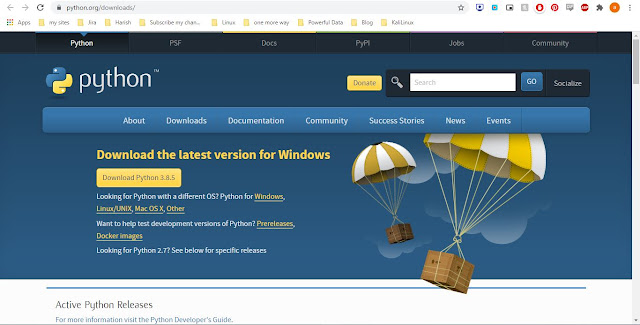
Python Download link https://www.python.org/downloads/ Check Python Version A Simple Program "Hello World" Run or Excute Python Program - Python "Hello world.py"
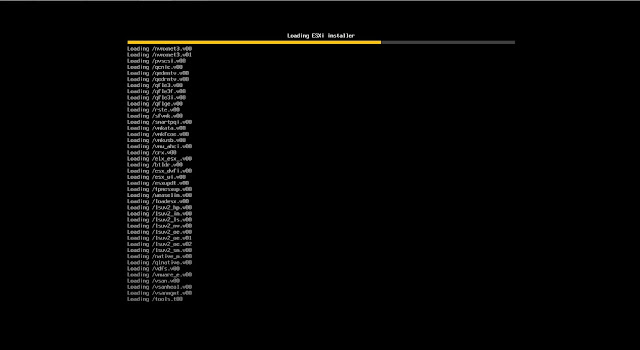
Place your Server in datacenter and connect your network cable and power on sever and place the IP address of ILO or IDRAC for taking console through remote. Select ESXI 7.0 Image to install your server Press Enter to continue the operation For license agreement press F11 button Accept and Continue Select your SDcard or Internal harddisk of server to install ESXI operating system Select your language By default root ID is there need to enter password It will ask confirm to install press F11 button It will start Process Once completed it will ask reboot the server Once reboot complete it will take DHCP server To login your server Press F2 key in your keyboard and enter the root password To change IP address of your server select configure management network Enter your IP address, subnet and degfault gateway details Enter Primary and Secondary server details of your Environment and also provide your Host name. Enter your domain name. Press ESC it will ask for reboot to ...
Command Prompt Color Codes Go to run command and type cmd or Type cmd in search Default Command Prompt Color 1 - Blue Color 2 Green Color 3 Aqua Color 4 Red Color 5 Purple Color 6 Yellow Color 7 White Color 8 Gray Color 9 Light Blue Color F Bright White Color E Light Yellow Color D Light Purple Color C Light Red Color B Light Aqua Color A Light Green All color codes cmd color help
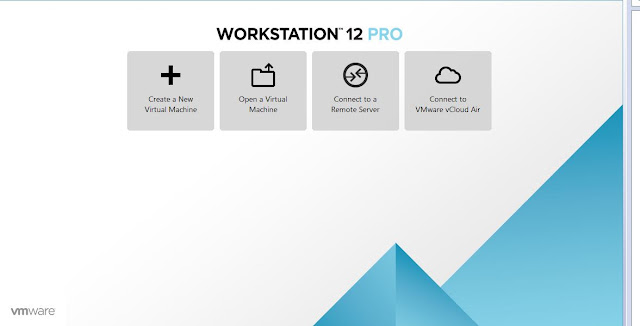
Create a New Virtual machine Select Typical we will select operating system later Select your Operating system based on your requirement eg Linux Provide your Virtual machine name and Destination location which location VM need to deploy Specify your Harddisk Size of your OS Ready to create a virtual Machine. Go Edit setting we can increase CPU, Memory Need to select ISO image on your local drive Linux Installation REDHAT 8.0




Comments
Post a Comment